Accounting Package Preferences
 Security and navigation
NAVIGATION Left Navigation Menu > Admin > Admin Categories > Features & Settings > Finance, Accounting, & Invoicing > Accounting Package Preferences
Overview
The Accounting Package Preferences page lets you control how Autotask sends invoice and tax information to your accounting package (such as QuickBooks Online).
You use this page to:
-
Identify which accounting package you are using.
-
Turn on enhanced tax handling for supported packages (for example, using QuickBooks Online Automated Sales Tax).
-
Control how and when Autotask releases invoices so that invoice totals match between:
-
Autotask
-
Your accounting package
-
Connected payment tools such as ConnectBooster
-
Correct configuration on this page is required to ensure invoice totals, taxes, and statuses are consistent across systems.
When to use Accounting Package Preferences
Use the Accounting Package Settings page when:
-
You are setting up a new accounting integration for the first time.
-
You switch from one accounting package to another (for example, from QuickBooks Desktop to QuickBooks Online).
-
You want Autotask to use tax amounts calculated in your accounting package (for example, QuickBooks Automated Sales Tax) so that:
-
Autotask invoices and PDFs match the accounting package, and
-
Third-party tools like ConnectBooster see a single, correct invoice total.
-
Settings
Global Defaults
| Global Default Accounting Package / Tax Method | Definition |
|---|---|
| Quickbooks Online/QuickBooks Online Calculates Taxes |
QuickBooks Online is used for tax calculations on ALL invoices. With this setting enabled, a code (integration identifier) is provided. This code must be entered in the Smart Accounting Hub. Refer to Code for more information. IMPORTANT Once you enable this setting and save in the Smart Accounting Hub, all future invoices synced will use QBO AST for tax calculations in Autotask. There is no way to revert this choice or retroactively change tax calculations on invoices that have already synced. ALERT In some scenarios, invoice descriptions or invoice numbers generated by Autotask may not appear in QBO as expected, and auto‑sync behavior may be affected. These issues may not impact all environments. While a resolution is being developed, if you experience unexpected behavior, we recommend setting the Global Default to Autotask.
|
| Autotask/Autotask Calculates Taxes | Autotask is used for tax calculations on ALL invoices. |
| Allow Overrides By | Definition |
|---|---|
| None |
No overrides are allowed. All invoices use the Global Default Accounting Package / Tax Method you set as the default. This is the simplest configuration and ensures every organization and invoice follows the same rules. |
| Company | Lets you specify a different accounting package / tax method for individual organizations in Autotask. This is useful if most of your organizations are billed through one accounting system, but some special organizations or subsidiaries need a different accounting package or tax behavior. |
| Division |
Lets you override the global setting for different internal segments of your own organization. EXAMPLE One division uses QuickBooks Online with QBO-calculated taxes, while another uses a different accounting system. |
Code
When QuickBooks Online is set as the default accounting package, a code (integration identifier) is provided. This is a system-generated, read-only value.
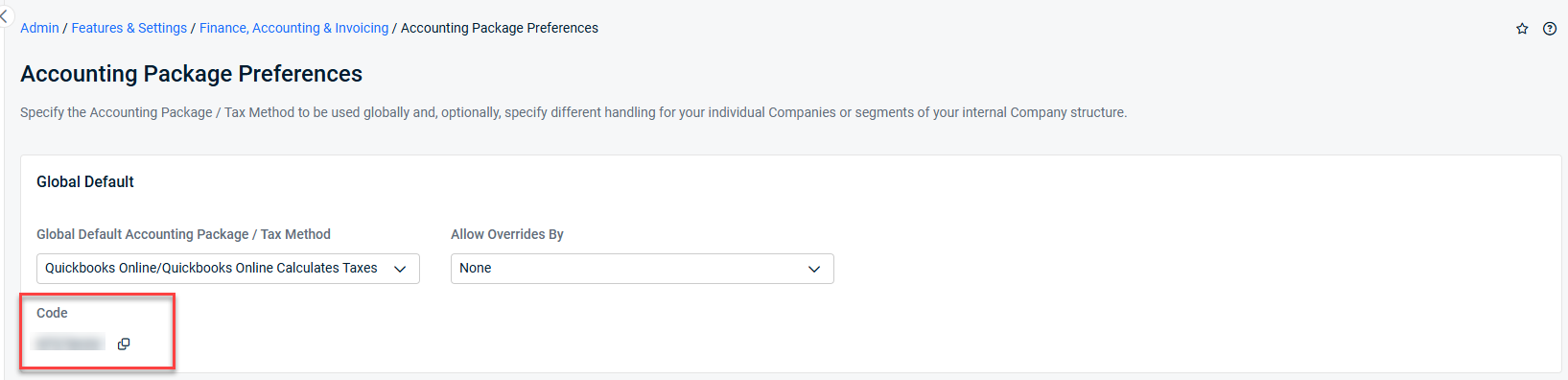
The Code displayed on the Accounting Package Preferences page is required when configuring the Smart Accounting Hub integration for tax synchronization. Refer to Smart Accounting Hub Code field.
When you enter this code and save your settings in the Smart Accounting Hub, the system will begin syncing taxes based on QBO Automated Sales Tax (AST) into Autotask. Refer to Smart Accounting Hub for QuickBooks Online (QBO) invoice settings.
What it means:
-
Code is an internal identifier Autotask uses for the selected global accounting package / tax method configuration.
-
It may be referenced in:
-
Internal tools
-
Integration logs
-
Support troubleshooting
-
From a day‑to‑day user perspective:
-
You do not need to change or manage this value.
-
If support or an integration partner asks for the “Accounting Package Preferences code”, you can copy this value for them.
Smart Accounting Hub Code field
In the Smart Accounting Hub QBO tax configuration, there is an Invoice Tax Method External Code field associated with tax behavior.
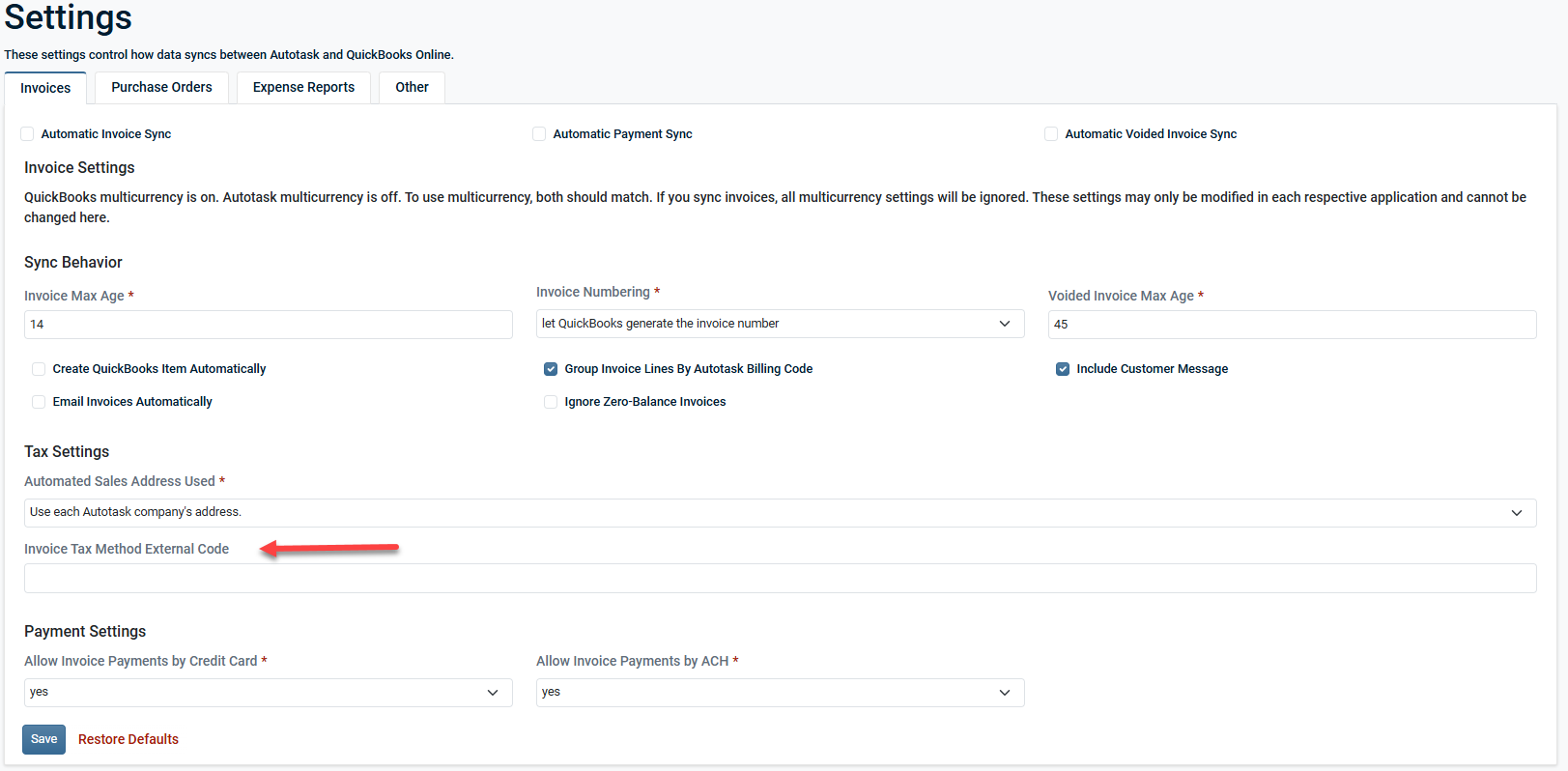
-
This code is required for the Smart Accounting Hub to correctly map and apply QBO tax behavior for the tenant.
-
It identifies the configuration that Smart Accounting Hub uses when sending invoices to QBO and receiving tax results back.
-
If the field is blank or incorrect, QBO‑driven tax calculations may not function as expected.
-
The code is provided or confirmed during Smart Accounting Hub onboarding. It should not be changed unless directed by Support or Implementation.


